For Kip McGrath Families

Your child's progress,
always at your fingertips

The Kip McGrath Parent Portal gives you a clear, up-to-date view of your child's lessons, tutor feedback, homework and progress — so you're never left wondering how they're getting on.

📋
After every session Tutor notes updated
📅
Upcoming lessons Always visible
💳
Payments Manage online anytime

What you can see inside the portal

Everything you need to stay informed and involved in your child's learning journey — all in one place.

📝

Lessons & Tutor Feedback

Read detailed notes from your child's tutor after every session, so you always know what was covered and how they performed.

  • Lesson notes updated after each session
  • Whiteboard content from recent lessons
  • Computer activity scores and results
  • Previous lesson history
📅

Upcoming Lessons & Homework

See your child's full schedule at a glance and track whether homework is being completed each week.

  • All upcoming lessons listed clearly
  • Homework tasks and completion status
  • Convert a lesson to DIY if needed
  • Multiple children shown in one view
💳

Payments & Account Balance

Manage your payment details, view your current balance and make one-off payments — all without needing to contact the centre.

  • View your current account balance
  • Set up weekly card or direct debit
  • Make one-off card payments
  • Split payments between two carers
👤

Your Contact Details

Keep your family's contact information up to date directly through the portal, without needing to call or email the centre.

  • Update your contact details anytime
  • Both carers can have their own login
  • Enrol additional children
  • Manage your profile securely

How to log in

There are three ways to access the Parent Portal. Choose whichever works best for you.
parent.kiplearn.co
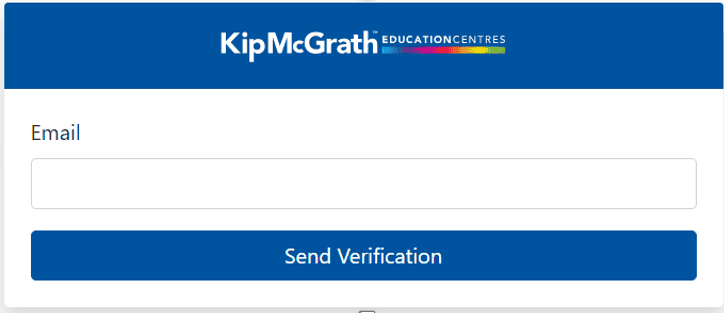
Verification code login screen
1

Verification code (recommended)

  • 1
    Go to parent.kiplearn.co on any device — no app needed.
  • 2
    Enter your registered email address and click "Send Verification".
  • 3
    Check your inbox for the verification code email from Kip McGrath and enter the code to log in.
💡 If the code email does not arrive, check your Junk or Auto Delete folders.
parent.kiplearn.co
Email and password login screen
2

Email & password

  • 1
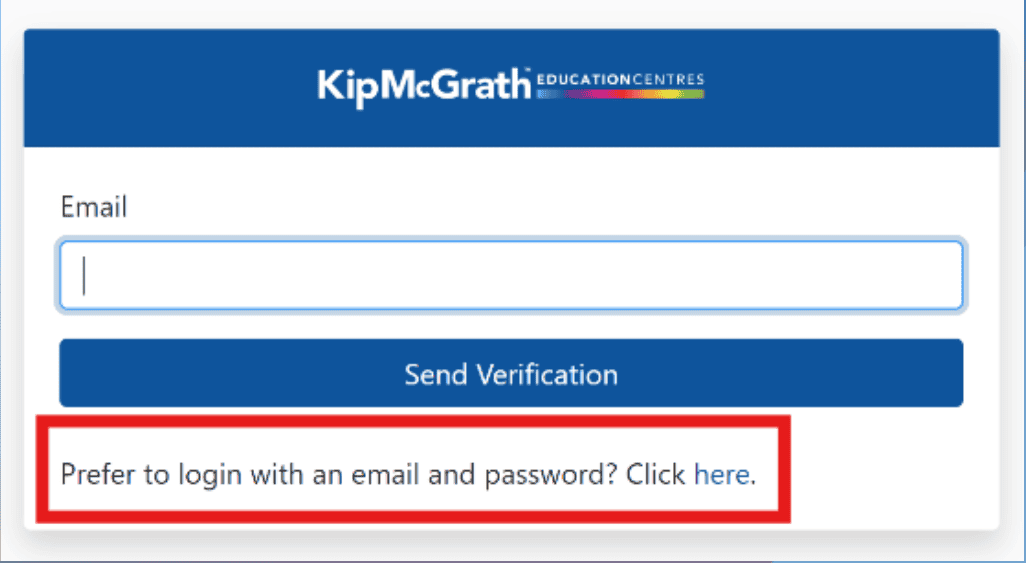
    Go to parent.kiplearn.co and click "Prefer to login with an email and password? Click here."
  • 2
    To set up your password for the first time, click "Forgot your password? Reset here."
  • 3
    Create a new password and confirm it in the second box, then click "Change Password".
  • 4
    You can now log in using your email address and password. Use the "Reset here" link at any time if you forget it.
kiplearn.co — Student Portal
Accessing parent portal via student account
3

Via the student's KipLearn account

  • 1
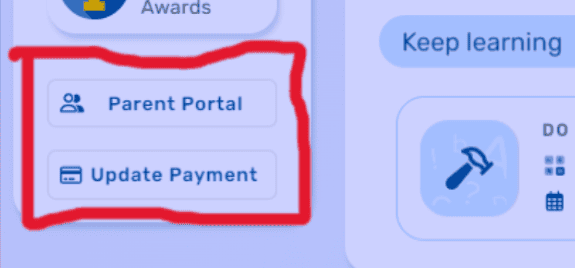
    When your child is logged in to their KipLearn account, click "Parent Portal" from the left-hand menu.
  • 2
    This will take you directly into the Parent Portal without needing to log in separately.
⚠️ Please note: If you are using the same browser as your child, logging into the Parent Portal will log them out of their KipLearn session. To avoid this, use a different browser (e.g. Chrome, Firefox, Safari) or a separate device.
ℹ️

Please note: To access the portal, you will need to use the email address registered with us at the time of enrolment. If you are unsure which email address is on file, or if you need to update your details, please contact your local centre and we will be happy to help.

The complete parent portal guide

Browse our step-by-step guide below to see exactly how the portal works — from logging in to viewing lesson feedback, managing homework and updating payment details.

Can't see the guide above? Open it in a new tab →

Not yet enrolled?
Let's find the right support for your child.

Book a free, no-pressure assessment and we'll identify exactly where your child needs support — and how we can help them feel more confident at school.